
Adding Web Part to a SharePoint Site
Below is a list of steps to add Virto Workflow Status Monitor to a classic and modern SharePoint page.
From version 6.1.12, the icon of the Virto Workflow Status Monitor web part takes its colour from the site theme (SharePoint blue on a site without a theme) and follows a change of the theme: in Insert › Web Part, in the title of the placed web part and in the Add a web part toolbox of modern pages. Web parts placed before the update show the new icon in their title without being placed again. In Insert › Web Part, the new icon appears the first time a Virto web part is opened in the site collection after the update.
In site collections set up by version 6.1.6 or older, the Status Monitor and Scheduler web parts were listed without icons in the web part picker. From version 6.1.13, they get their icons when the product is upgraded: the upgrade updates the feature of the site collection, which adds both web parts and the links in Site settings again.
Add Virto Workflow Status Monitor to a classic SharePoint page
- Go to the SharePoint site where you want to add the Virto Workflow Status Monitor web part.
- Open the page in edit mode:
- Click Edit on the page toolbar.

- In edit mode, move to the zone where you want to place the web part and click Insert, then WebPart on the ribbon.

- In the web part gallery that opens, find Virto Solutions, then Virto Workflow Status Monitor.
- Select the web part and click Add.
- Click Exit edit mode / Stop Editing to save the page.
- To configure the web part, open the web part Settings [gear icon] and adjust the Status Monitor Web Part Settings as required.

Add Virto Workflow Status Monitor to a modern SharePoint page
Modern pages are supported on SharePoint Server 2019 and Subscription Edition. Before you start, deploy virto-workflow-automation.sppkg and add the app Virto Workflow Automation to the site collection, as described in Modern pages.
- Go to the SharePoint site (modern experience) where you want to display workflow statuses.
- Either:
- Click New→Site page to create a new modern page, or
- Open an existing modern page and click Edit.

- On the page canvas, click the + icon in the section where you want to add the web part.
- In the web part picker, search for Virto Workflow Monitor (the name of the web part on modern pages) and click its tile/icon to add it to the page.
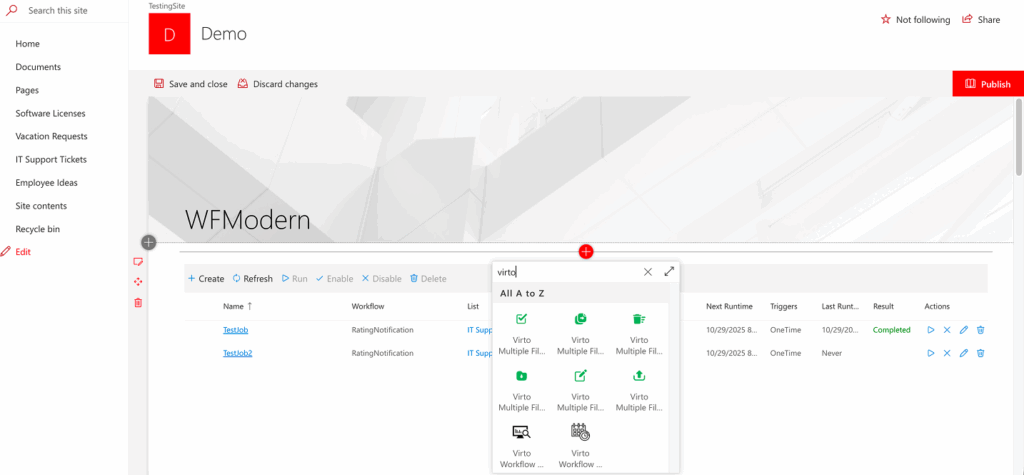
- Once the web part is added, click the Edit web part (pencil) icon, then Configure Web Part in the property pane, and configure Status Monitor options as needed: see Status Monitor Web Part Settings.
- When configuration is complete, click Publish (or Republish) in the top-right corner to save and make the page available to users.