
Starting a New Workflow
To start a new workflow with Virto SharePoint Workflow Status Monitor, use “Start a New Workflow” button.

Now you have to fill out all the required fields in the “Start New Workflow” window.

First, choose the list to pull data from. Then select the list items the workflow will process:
- All items in the list;
- Items from List View;
- Single list Item;
- Or Items selected by CAML query.
Next, select a workflow from the list and, optionally, specify the event data.
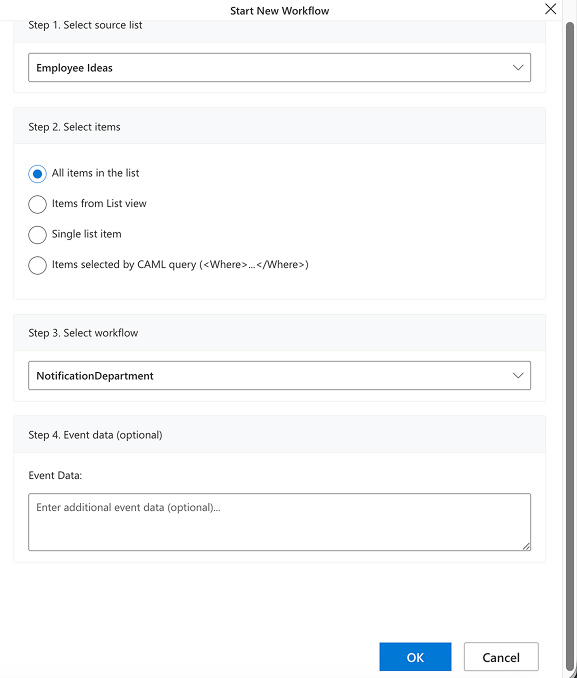
When you’ve completed all required fields, click OK to save the new workflow.
From version 6.1.13.2, a workflow of the SharePoint 2013 platform that is started from Status Monitor runs as the user who clicked the button and completes. In earlier versions, such a workflow stays In Progress and does not complete; upgrade to 6.1.13.2 or later.