
Installing Virto Workflow Automation
Before you begin, make sure you have access to the SharePoint server and that your account has the administrative privileges required to install applications.
Virto Workflow Automation—combining Virto SharePoint Workflow Activities, Virto Workflow Status Monitor, and Virto Workflow Scheduler—can be downloaded as a single package from the Virto Workflow Automation page.
Unzip the package (for example, Virto.SharePoint.SE.WorkflowAutomation.zip).

It contains two folders:
Virto.SharePoint.WorkflowAutomation.Setup— the setup program (SetupSE.exefor SharePoint Server Subscription Edition,Setup2019.exefor 2019,Setup2016.exefor 2016),Deploy.ps1for installation from the SharePoint Management Shell, the solutionVirto.SharePoint.WorkflowAutomation.wspand the modern web part packagevirto-workflow-automation.sppkg(2019 and SE only);Virto.WebLicenseManager— Virto License Manager.
Run the setup program as a farm administrator and select the web applications and site collections where the product is installed and activated.

The setup wizard will open.

On the System Check page, the setup wizard checks the .NET Framework, the SharePoint version, your permission to install and deploy SharePoint solutions, the SharePoint Administration and Timer services, the solution file, and whether the product is already installed. All checks must pass before you can continue. When the checks finish, click Next.

From version 6.1.10.1, the setup wizard shows its texts in the display language of Windows when it is English, German, French, Russian, Spanish, Danish, Ukrainian, Czech, Swedish, Chinese, Polish, Finnish, Italian or Dutch, and in English otherwise. To choose the language, start the setup program from a command prompt with /lang: and the language code (en, de, fr, ru, es, da, uk, cs, sv, zh, pl, fi, it or nl), for example SetupSE.exe /lang:de. The license agreement stays in English.
From version 6.1.10.1, the System Check page also checks the farm. The installation does not continue while the .NET Framework on the server is older than the edition needs (4.8 for SharePoint Server Subscription Edition, 4.7.2 for SharePoint Server 2019 and 2016), while the SharePoint Timer service (SPTimerV4) is not running on a server of the farm, or while a solution deployment job is running in the farm: remove the cause, then run the setup program again. Low free disk space, no App Catalog for the modern web part (SharePoint Server 2019 and Subscription Edition), and a missing root certificate Microsoft Identity Verification Root Certificate Authority 2020 (see On a server without internet access) are only warnings: the row is marked with a yellow triangle and Next stays available.
The row “The Windows SharePoint Services Timer service is started” no longer restarts a running Timer service on this server. If the service is stopped, the setup program starts it and the row says “The Windows SharePoint Services Timer service was stopped; it has been started.”
Virto Workflow Automation adds two rows that only warn: whether the SharePoint 2010 workflow engine is turned on in every web application (where it is off, the 2010 workflow actions of the product do not run), and whether the Workflow Manager registered in the farm has its scope for SharePoint (without it, the 2013 workflow actions cannot be activated until Workflow Manager is registered again with Register-SPWorkflowService). If no Workflow Manager is registered in the farm, the row says so and the check is skipped.
From version 6.1.13, the System Check page also names the older Virto products that Virto Workflow Automation replaces when the farm still has them: Workflow Activities for 2010 workflows, Workflow Status Monitor or Workflow Scheduler. On a farm where Virto Workflow Automation is not installed yet, the installation does not continue: remove the older products first, then run the setup program again. When Virto Workflow Automation is already installed, the page only warns. See Upgrading from the older products.
On the End-User License Agreement page, open the link to review the EULA for on-premises products, select “I accept the terms in the License Agreement”, then click “Next”.

On the Site Collection Deployment Targets page, select the web applications and site collections where the product is installed and activated, then click Next to start the installation.
Warning: To enable automatic feature activation, you must be signed in on the SharePoint server with a Site Collection Administrator account.

Wait for the installation to complete.

Then click “Close”.

Now, run “SharePoint Central Administration“.
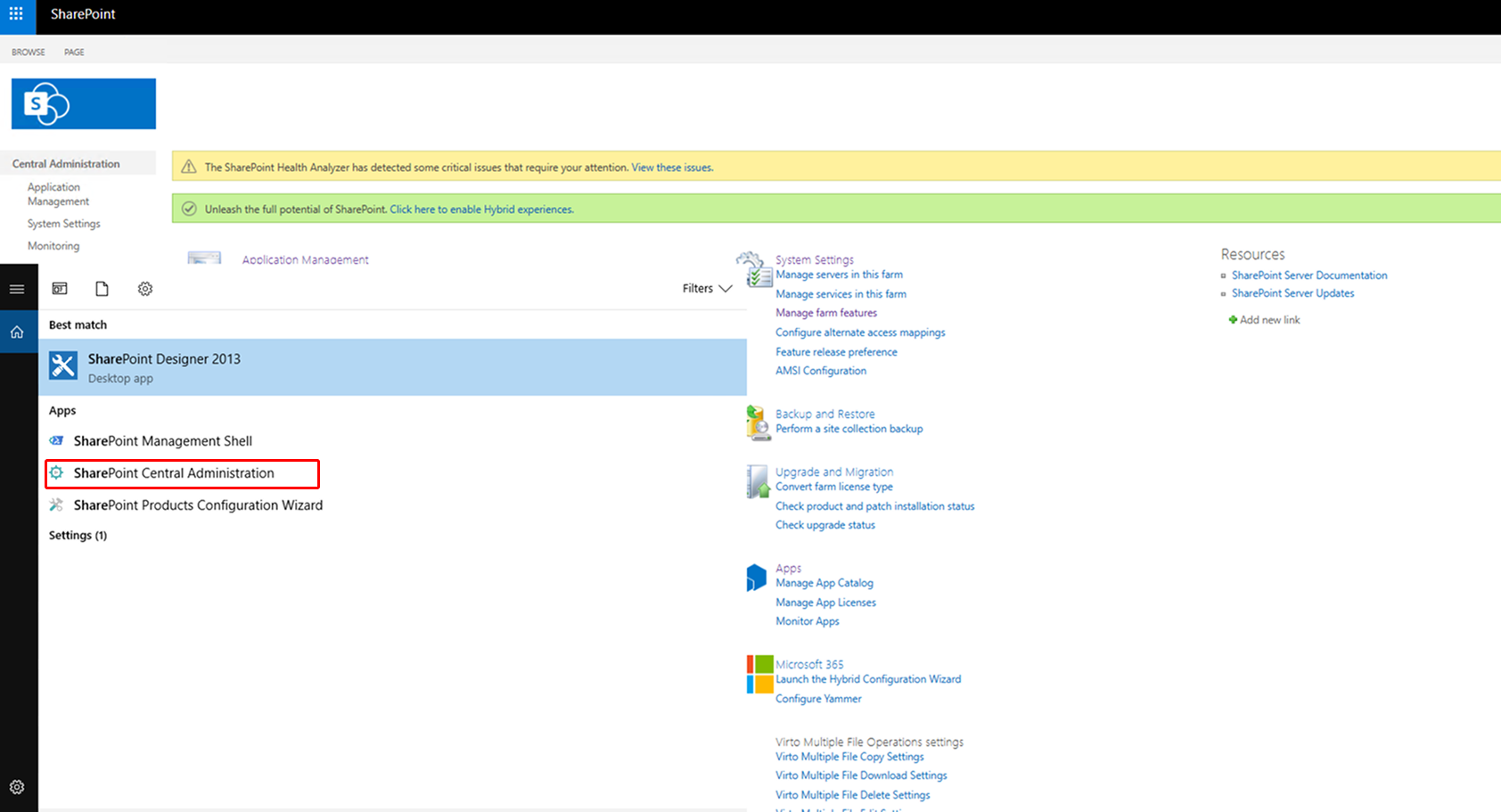
Activate the license. In Central Administration, find the Virto License Manager group (Virtosoftware Web License Manager before License Manager 3.3.2) and click Products.

The VirtoSoftware Installed Products page lists the installed Virto products. Click the product to activate, in this example Virto Workflow Automation.

On the Product Registration page, select the server, enter the serial number in Serial number and click Activate online. On a server without internet access, use offline activation: see Product activation.

Now go to “System Settings” → “Manage farm solutions” to verify the apps/solutions show a status of “Deployed”.

Confirm the features are active. On the target site, go to “Site contents” → “Site settings”.
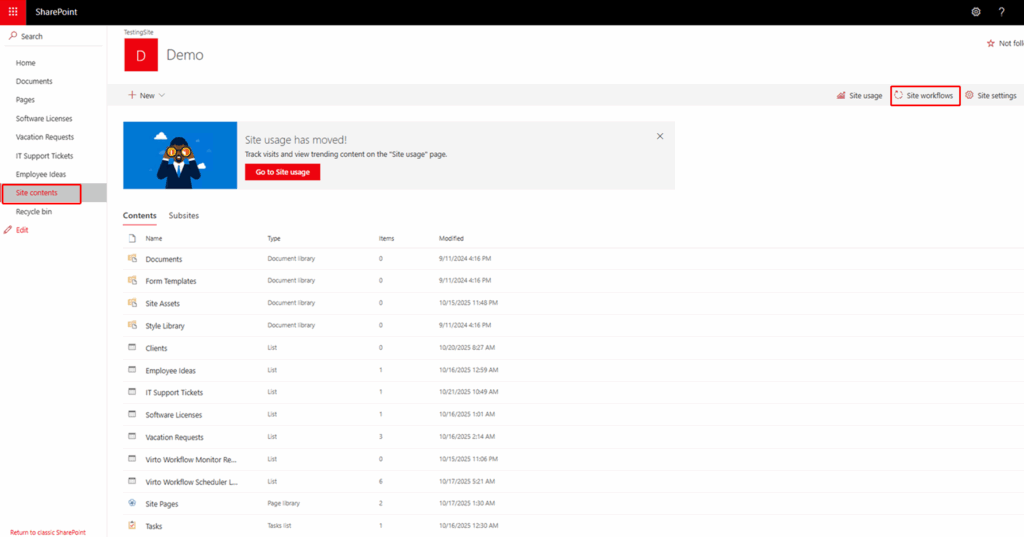
Open “Site collection features” and “Manage site features” to verify that the features are “Active”. If not, click “Activate”. From version 6.1.10, the site collection feature is Virto Workflow Automation - 2010 Actions, Monitor and Scheduler and the site feature is Virto Workflow Automation - 2013 Actions; before 6.1.10, both are called Virto Workflow Automation.


In site settings, the Virto Workflow Automation group has the links Status Monitor and Scheduler, which open Virto Workflow Status Monitor and Virto Workflow Scheduler; Scheduler is shown only to site collection administrators. Before version 6.1.11, the links are Virto Workflow Status Monitor in Site Administration and Virto Workflow Scheduler in Site Collection Administration.

Installing with Deploy.ps1
Instead of the setup program, you can use Deploy.ps1 from the Virto.SharePoint.WorkflowAutomation.Setup folder. Open the SharePoint Management Shell as a farm administrator in that folder, load the script and call Install-WebPart with the path to the solution and the URL of the web application. On SharePoint Server 2019 and Subscription Edition, add the path to virto-workflow-automation.sppkg and the URL of the App Catalog to upload the modern web part package as well:
. .\Deploy.ps1
Install-WebPart .\Virto.SharePoint.WorkflowAutomation.wsp "https://your-web-app" .\virto-workflow-automation.sppkg "https://your-web-app/sites/AppCatalog"
Running Deploy.ps1 on its own installs nothing: the script only defines the Install-WebPart function. The function adds the solution or updates an installed one, deploys it to the web application and activates the site collection feature in every site collection of the web application; features that are already active are left as they are. When you give the .sppkg path and the App Catalog URL, it uploads the package to Apps for SharePoint; deploy the app in the catalog afterwards. If the deployment fails, it stops and shows the reason. The site feature for the SharePoint 2013 workflow platform is activated per site: see Activating Virto Workflow Automation for Workflow Platform 2013.
From version 6.1.10, add -updateOnly to the Install-WebPart call to update a solution that is already installed without activating features and without adding the product to site collections. If the solution is not installed, the function stops with “Update failed: the solution is not installed”.
From version 6.1.10.1, the script registers the installed version as the setup program does, also with -updateOnly, so Virto License Manager shows the new version.
Deploy.ps1 installs only Virto Workflow Automation. Install Virto License Manager with the setup program, or with the setup program in the Virto.WebLicenseManager folder.
Modern pages
Modern pages are supported on SharePoint Server 2019 and Subscription Edition. The package for SharePoint Server 2016 has no .sppkg file: on 2016, the web parts are available on classic pages only.
To use Virto Workflow Status Monitor or Virto Workflow Scheduler on modern pages:
- Deploy
virto-workflow-automation.sppkgin Apps for SharePoint. - Add the app Virto Workflow Automation to the site collection (Site contents → New → App).
- Add the web part to a modern page: see Adding Web Part to a SharePoint Site.