
Adding a web part to a classic page
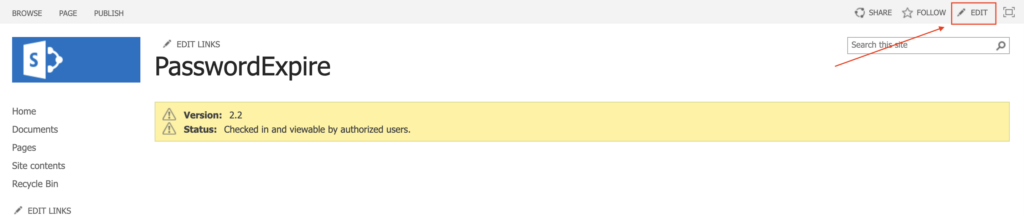
Go to the page where you want to add your web part and click Edit.
Open the Insert tab, find Web Part, and click it.
In the Categories list, select Virto Solutions, then select one of the web parts Virto User New, Virto User Edit, Virto User Copy, Virto Password Change or Virto Password Expired. Click Add.

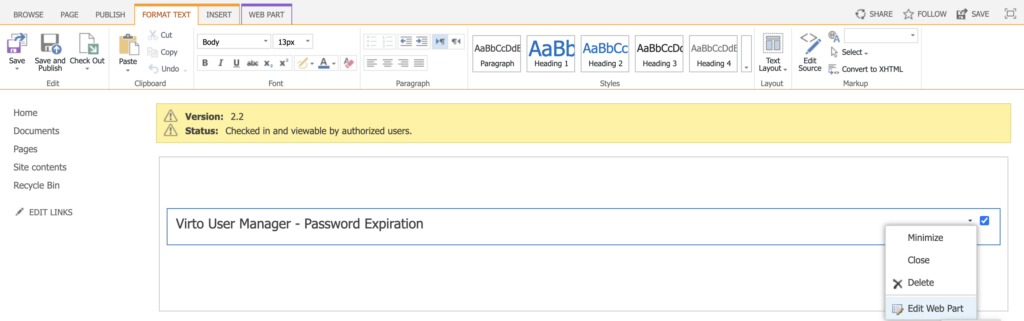
Click the settings icon on the web part and select Edit Web Part.
Note: On SharePoint Server Subscription Edition, the tool pane for classic web parts is turned off by default. A farm administrator turns it on for a site collection with Enable-SPToolPane -Identity <site collection URL>.
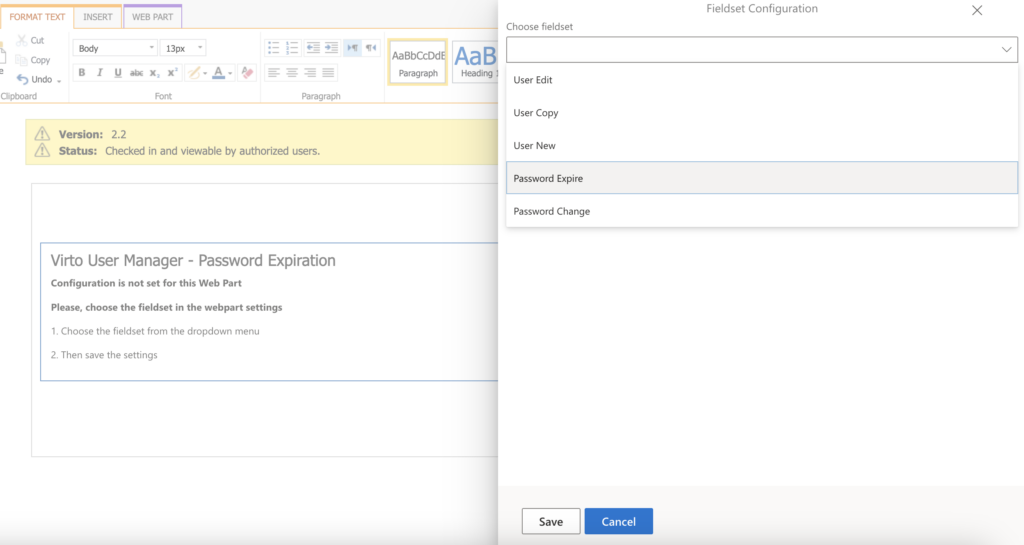
In the tool pane, expand User Manager web part settings and click Configure Web Part. Until a fieldset is chosen, the web part shows “Configuration is not set for this Web Part”.

Choose the fieldset for the web part. The list shows the fieldsets assigned to this web part (Security and Options › Web parts) and the fieldsets assigned to no web part. (For details on how to configure a fieldset, see the Settings section of this documentation.) Then click Save. If the save is refused, the panel shows the reason given by the server; versions before 3.2.5 showed an unreadable placeholder instead.
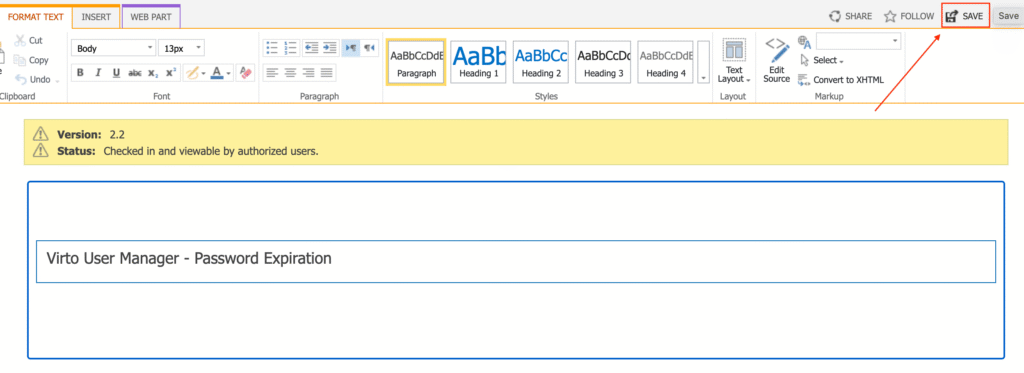
In the upper-right corner of the page, click Save again.
Now, the web part is ready to use.
Note: Virto User Edit, Virto User Copy and Virto User New do not work under the SharePoint system account and show “Not supported under system account”. Test them with a regular user account.
How the web part looks
From version 3.2.5, the web part takes the background colour of the page and the text colours of the site theme instead of a white block with dark text. On a dark theme it keeps the dark background and light text, and the marker of required fields and the messages under the fields stay readable on dark and coloured pages. On such a page, the web part therefore looks different from the screenshots in this documentation, which were taken on white pages.
From version 3.2.4, the icon of the web part takes its colour from the site theme (SharePoint blue on a site without a theme) and follows a change of the theme, in Insert › Web Part and in the title of the placed web part. Web parts placed before the update show the new icon in their title without being placed again. In Insert › Web Part, the new icon appears the first time a Virto web part is opened in the site collection after the update.