
Password Change Web Part
To change your password, enter your current password in Your old password and the new one in New password and New password again. Don’t forget to complete the captcha, if your administrator has enabled this setting. Then click Save. If the new passwords differ, you see it at once. The CAPTCHA and the Save button work as described in Saving the form.
Click the information button next to a password field to see the password policy description set by the administrator. Click the eye icon to show the typed password.

If Active Directory rejects the change, for example because the current password is wrong or the new password does not meet the domain password policy, the reason is shown above the form.
The administrator can set password rules in the fieldset (minimum and maximum length, digits, lower-case and upper-case letters, special characters). A new password that breaks a rule is refused, and the message names the rule, for example “The password must be at least 8 characters long.”
If e-mail confirmation is turned on, after saving you will see the message: “Please check your email and follow the confirmation link.”
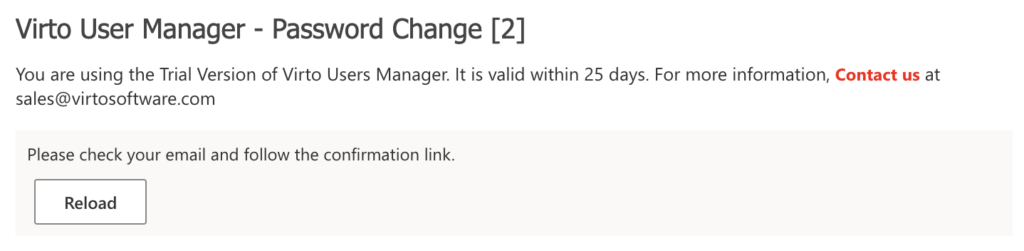
Check your email and look for the “Action confirmation” message. Click the link in it to confirm the password change. The link works once, for 24 hours, and only for the user who started the change.
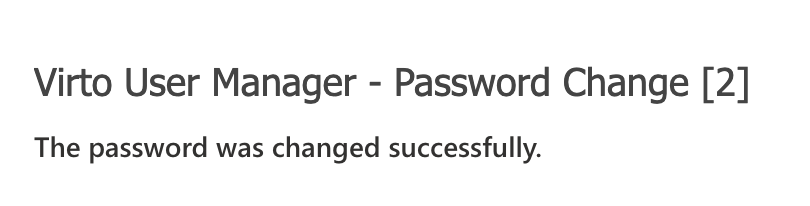
The link opens the page where the change was started, and the same Password Change web part completes it with the message: “The password was changed successfully.” The web part must therefore stay on the page until pending confirmations are completed.
Note: The password is changed with the user’s own current password, as in Windows. The account of the fieldset’s authentication mode needs no right to reset passwords for this web part.