How to Add Resource Manager to Teams
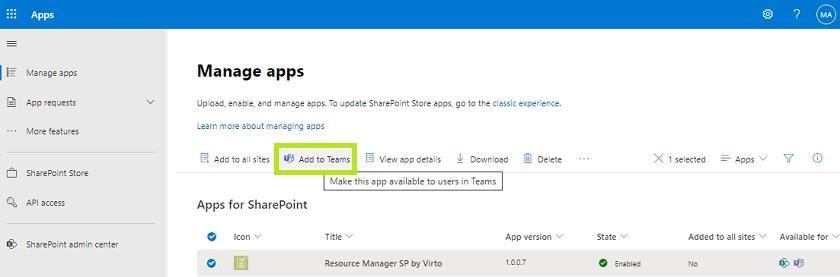
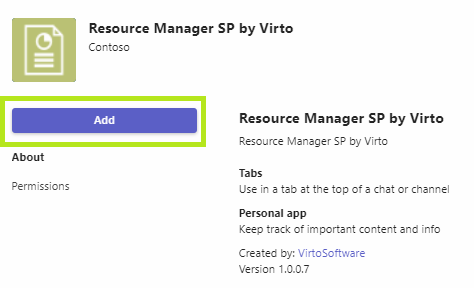
Select the app and click Add to Teams.
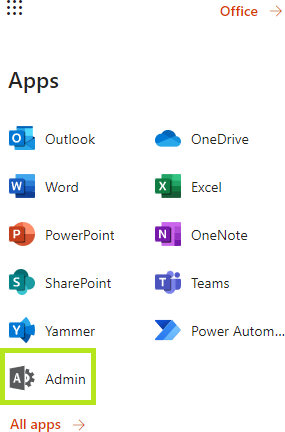
On the next step, please go to SharePoint Admin Center Teams (Apps — Admin).
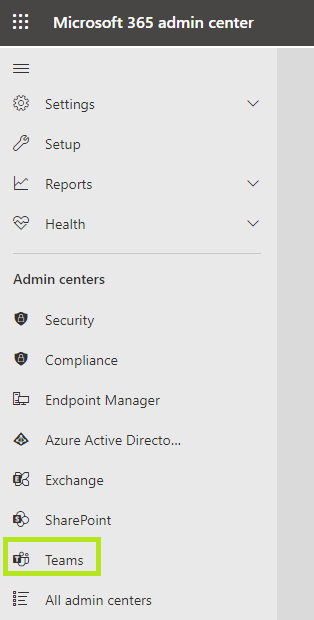
Now find the Teamsadmin center. Make sure you have Teams administrator permission.
In the Teams Admin center, find Teams Apps — Manage Appsand find the Resource Manager App approved by the SharePoint administrator. Allow it.
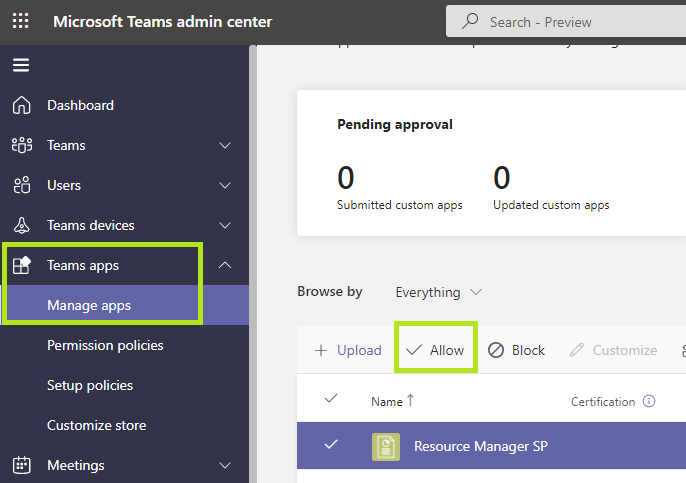
Click on the app name and click Allow. Now when Teams users of your organization go to Apps they can see the Resource Manager App in the list of available apps.
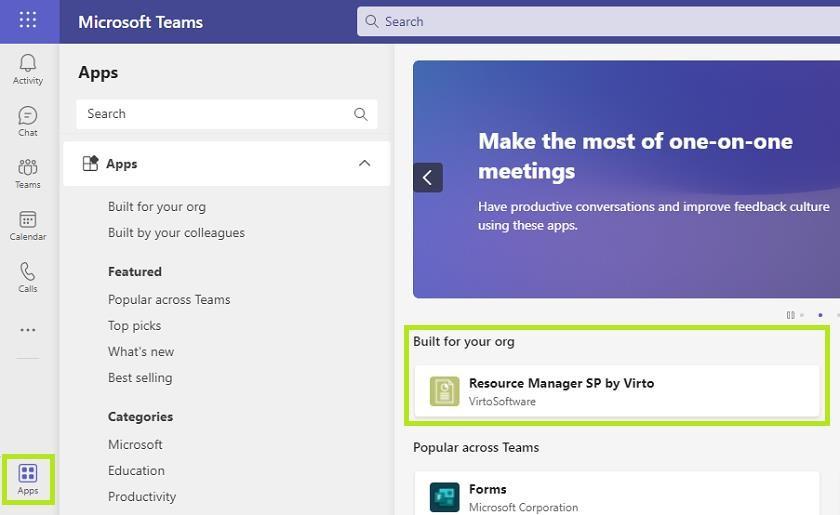
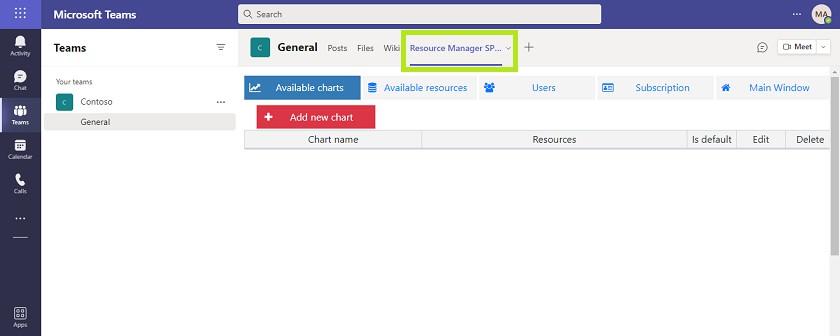
For example, now you can add Resource Manager as a separate tab to a chosen Teams channel and use the full-featured app without switching between Teams and SharePoint.
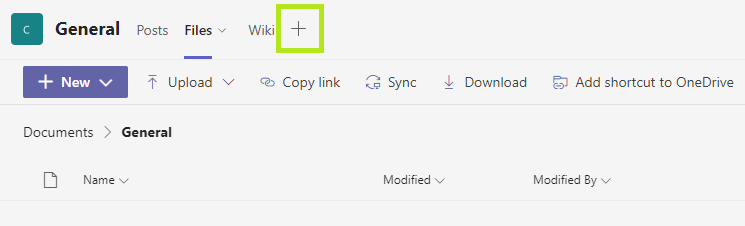
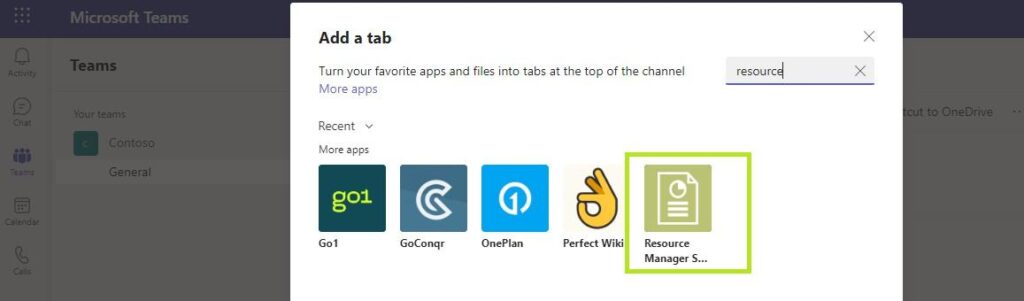
The Resource Manager App now is available as a separate tab of a chosen Teams channel.