
Adding the Web Part to a Page
Classic page
Go to SharePoint site where you want to add the web part and open “Site Actions - Edit page”.
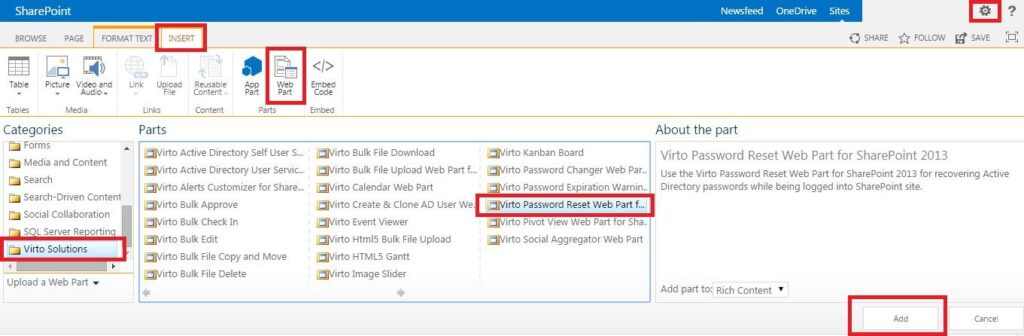
You will switch to edit mode. Click “Add a Web Part”.
Select Virto Password Reset and Recovery Web Part for SharePoint at the bottom of the list and click “Add”. Once you have clicked “Add” button, use “Exit edit mode” button.
Modern page
The modern web part is available after the SPFx Web Part Installation.
Edit the page, click +, find Virto Password Reset and add it. Until the mode is configured, the web part shows “Question options are not set” or “Active Directory options are not set”. From version 3.3.3.5, when you configure the web part on a new page and click Publish, it shows the password reset form at once. In earlier versions, the message stayed until the page was reloaded.
Select the web part and click Edit web part to open its properties: they contain the same options as the classic web part (see Virto Password Reset and Recovery Administration), plus Security Question #1–#3 with the Active Directory attribute that holds each answer. The pane does not show the saved password of the account in Administrative Options: the field stays empty, and the saved password is kept.

The modern web part is shown in the language of the site (English, German or French).