
Using Lookups for Data Reference
Go to the SharePoint list where you have adjusted Virto Cross-Site Lookup Selector columns and click “new item”.

You enter the values on the classic New and Edit forms. In a list that opens in the modern experience, New also opens the classic New form, with Save and Cancel on the ribbon.
For a column with a single value, choose the value in the drop-down list. A dependent column offers only the values that match the column it depends on.
Start typing in the field to find a value: the list shows the matching values as you type, or “No matches”. In a single-value column the search finds the values that contain the typed text, regardless of case. Use * for any characters and ? for one character. Up to 50 matches are shown; type more letters to narrow the list.
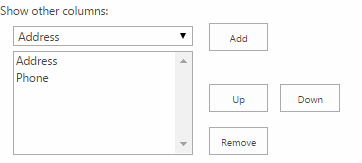
Each value in the list shows the Display Column value followed by the values of the fields selected in Show other columns, separated by commas. The values are sorted alphabetically. A column that does not require a value offers “(None)” as the first option to leave it empty.

In the example below, the Items column allows multiple values and depends on the Category column: after you choose a category, only the items of that category are offered. Each item shows its price, a field selected in Show other columns.
For a column that allows multiple values, type in the search box above the list of available values to narrow the list, select the values and click Add >. The search box finds the values that contain the typed text, regardless of case.

Select a value and click Add >; < Remove returns a chosen value to the list.

Click “Save” to create the item.
If a column that requires a value is empty, the form is not saved and shows the standard SharePoint message “You must specify a value for this required field.”
You can view the list item to see the details. On the item display form, every value is a link to the source item; several values of a column are shown in one line, separated by semicolons. Without a valid license, the display form shows the saved values as text, and the New and Edit forms do not show the column; see License Activation.

The values of the fields selected in Show other columns are shown next to each value in the list of values on the New and Edit forms and in classic list views. They are not shown on the item display form.
This way you can create lookups and set references between SharePoint list columns.