
List setup
If you’ve created a quick board, the List Setup tab will appear after you click the “Edit board settings” icon next to the board name.
If you’re creating a board for an existing list, the List Setup will appear after you choose the “Configure for the existing list” option.
Enter a board name and click “Open lists picker” to select the SharePoint list(s) from the site collection that contain the data you want to display as a Kanban board.
If you’re working with a quick board, the list will be automatically created.
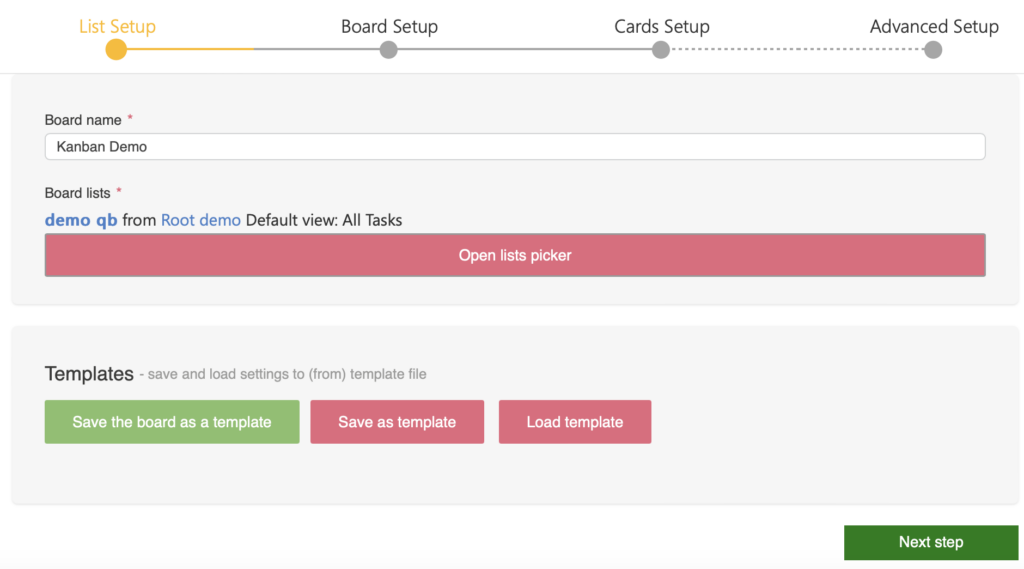
Ensure the selected list has fields of both the choice and user types.
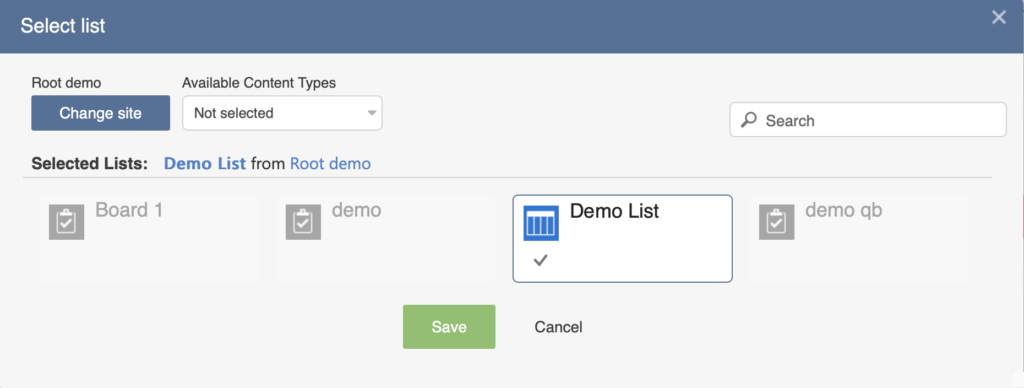
Choose one or multiple lists to display on the Kanban board. The list name in the list picker includes a link to the list, and you can also view the list collection that the list belongs to.
The “Available Content Types” drop-down menu displays the lists containing the selected content type.
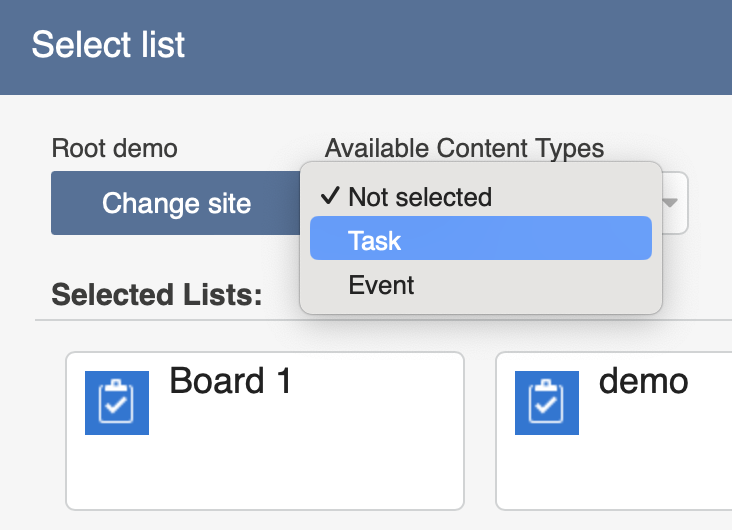
Use this option when you want to add multiple lists to your board. First, choose the content type, and then select the lists with this content type that you want to display on the board.
Board Templates
The Kanban Board web part for SharePoint 2013, 2016, 2019 and Subscription Edition supports templates. “Save as template (Online)” was added in version 5.3.8, so it is not available in the web part for SharePoint 2013, which is published in an earlier version.
The “Templates” block has four buttons:
- Save the board as a template—saves a KB5T file to your disk: Kanban board settings + SharePoint list linked to the board + list data (optional).
- Save as template—saves a KB5J file to your disk: only board settings.
- Save as template (Online)—saves a KBOJ file to your disk: board settings in the format of Virto Kanban Board App.
- Load template—loads board settings from a KB5J file.
To save a template, find “Templates” in the List Setup tab and click “Save the board as a template.”

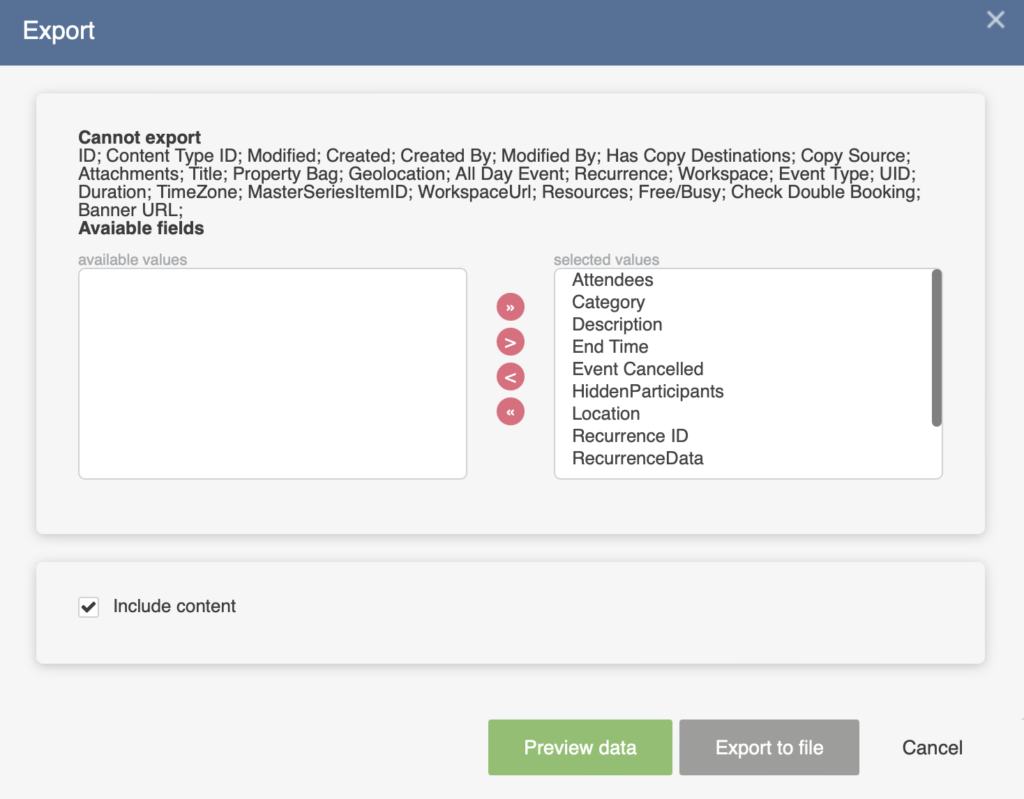
Check the fields you would like to export and note that the fields not selected will not be exported.
Export rules
- You can only create a template from a board if it is based on a single list.
- Not all fields can be added to the template. The following fields cannot be exported: ID, Content Type ID, Modified, Created, Created By, Modified By, Has Copy Destinations, Copy Source, Attachments, Title, Property Bag, Geolocation, All Day Event, Recurrence, Workspace, Event Type, UID, Duration, TimeZone, MasterSeriesItemID, WorkspaceUrl, Resources, Free/Busy, Check Double Booking, Banner URL.
- You can include up to fifty Kanban cards in the template. Subtasks are counted as separate cards.
- You can exclude content by unticking the “Include content” box and only import list fields and structure.
You can preview the export by clicking “Preview data.”
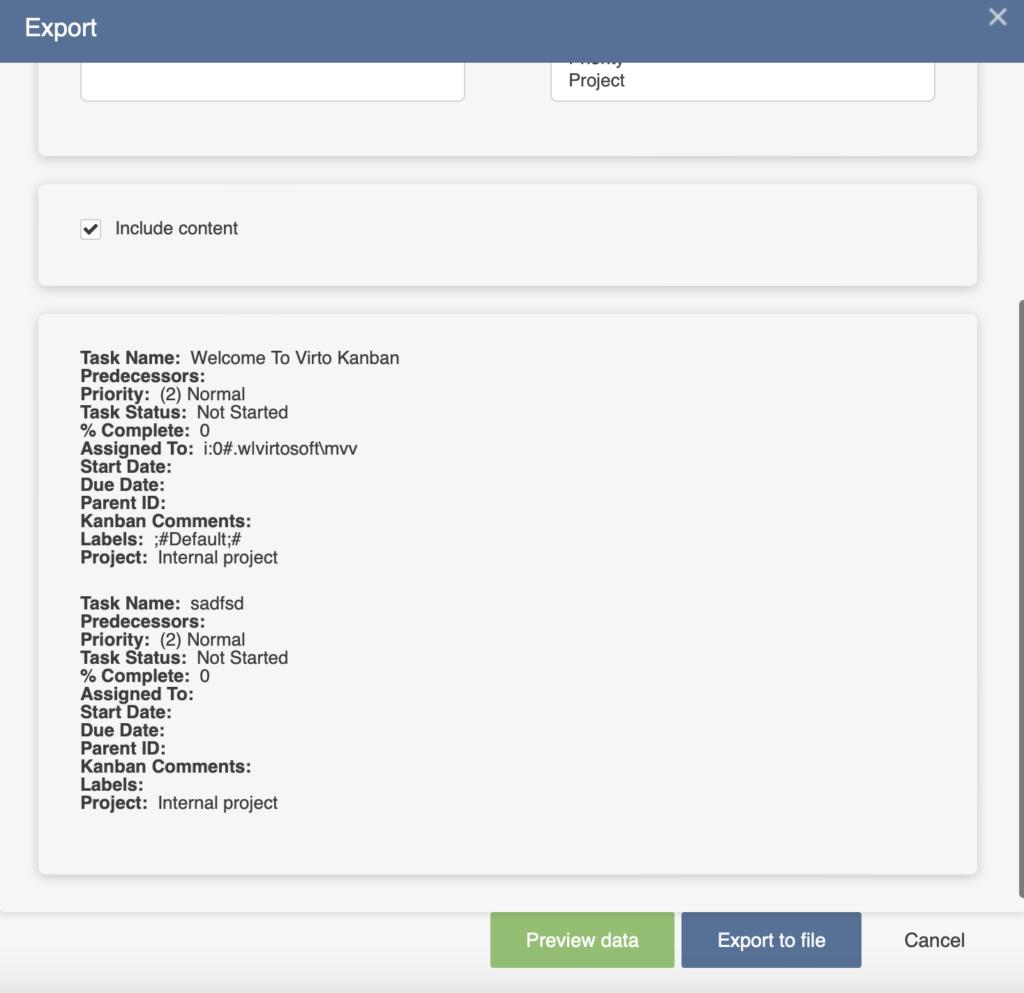
Finally, save the created file to your disk for future use.
You can also create a new board from a template. When creating a new board, choose “Create from a template” on the Kanban Board web part page.
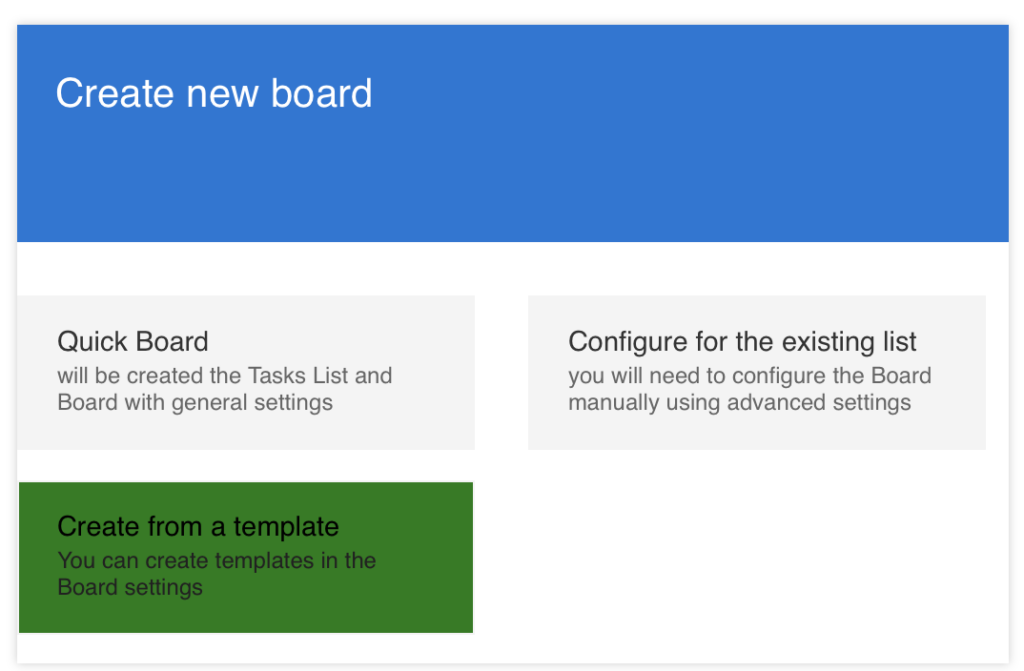
Now, select the previously saved template file from your disk, and you’re ready to start working.