
Adding Virto Calendar App to the Site Page
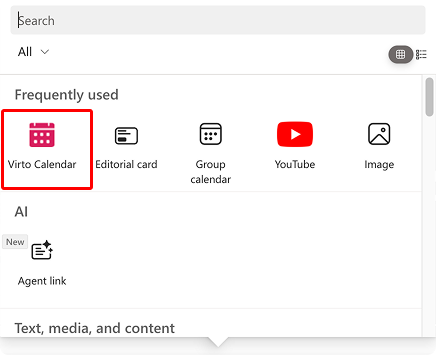
Open the site page where you’d like to add Virto Calendar. Switch to edit mode and click “+.” Search for Virto Calendar and add it to your page.
Opening Virto Calendar in Microsoft Teams, Outlook, and the Microsoft 365 app
In addition to a SharePoint site page, Virto Calendar can be opened as a standalone app in the three Microsoft 365 hub applications—Microsoft Teams, Outlook, and the Microsoft 365 app (also referred to as the Microsoft 365 Copilot app). The app is listed as Virto Calendar Pro in the app bar.
When you open it this way, the app loads your project calendar from the root collection by default, so no additional configuration is required to start using it.
Before you start: granting access (administrator)
Access to the app is granted by an administrator in the Microsoft Teams admin center. Once a user or group has access, users add Virto Calendar Pro themselves from the store.
- Sign in to the Microsoft Teams admin center and go to Teams apps > Manage apps.
- Search for Virto Calendar Pro and select the app name to open its details page.
- Open the Users and groups tab.
- Under Select to manage who this app is installed for or available to in your organization, choose one of the two options described below and select Apply.
- Availability > Edit availability. Select the users or groups that may use the app. They can then find Virto Calendar Pro in the store and add it themselves. This is the usual choice.
- Installs > Edit installs. Select the users or groups for whom the app should be installed directly—it appears in their app bar without any action on their part. Installing an app for a user also makes it available to that user, so no separate availability step is needed.
On the same app details page, the Supported on row confirms that Virto Calendar Pro runs in Teams, Outlook, and the Microsoft 365 app.
If your screen looks different. The steps above describe app-centric management, which Microsoft is still rolling out. If your tenant has not been migrated yet, you manage access through Teams apps > Permission policies and Setup policies instead, and the Users and groups tab does not offer the Availability or Installs options. See Use app-centric management to manage access to apps in the Microsoft documentation.

Granting access in the Microsoft Teams admin center: Teams apps > Manage apps > Virto Calendar Pro > Users and groups.
Note: Changes are not instant: it can take up to 24 hours for availability changes to reach users, and in rare cases up to six days. If you cannot find Virto Calendar Pro in the store after that, you have most likely not been included in the list of users or groups with access—contact your Microsoft 365 administrator.
Adding the app in Microsoft Teams
- In Teams, select Apps in the left app bar.
- Search for Virto Calendar Pro and select Add.
- The calendar opens immediately. To keep it available, right-click the app icon in the app bar and select Pin.

Virto Calendar Pro in Microsoft Teams.
The calendar also works in Teams on mobile: once the app is added, open it from the Teams mobile app the same way.

Adding the app in Outlook
In Outlook, the app is available on the web and in the desktop client. The Outlook mobile app is not supported.
- Outlook on the web: In the sidebar, select Apps.
- Outlook on Windows: In the sidebar, select More apps.
- Select Virto Calendar Pro from the list of installed apps to open it, then pin it for quick access.

Virto Calendar Pro in Outlook.
Adding the app in the Microsoft 365 app
In the Microsoft 365 app (web or desktop), select the Apps icon in the sidebar, then select Virto Calendar Pro. On the web, the app is available at m365.cloud.microsoft. The Microsoft 365 mobile app is not supported.

Virto Calendar Pro in M365.
Notes and limitations
- Pinning is per host. Pinning the app in Teams does not pin it in Outlook or in the Microsoft 365 app. Pin it separately in each application.
- Same account. Sign in with the same Microsoft 365 account the app was installed under. No separate Virto sign-in is required.
- Mobile: Teams only. Virto Calendar works in the Teams mobile app. It is not supported in the Outlook mobile app or the Microsoft 365 mobile app (iOS and Android)—in Outlook and Microsoft 365, use a web or desktop client. If the Teams mobile app was already running when the app was installed, restart it to see Virto Calendar Pro.
- Permissions are unchanged. Users see the same calendars and events they can access on the SharePoint site page; opening the app from a different host does not grant additional access.