
Reminders for corporate training courses
We have a SharePoint list with planned educational courses for company employees. We need to notify them about upcoming courses so they can review their schedule and allow time to attend courses they are interested in. The reminder should also appear in the Microsoft Teams channel. We will use the Virto Alerts & Reminder App to do this.
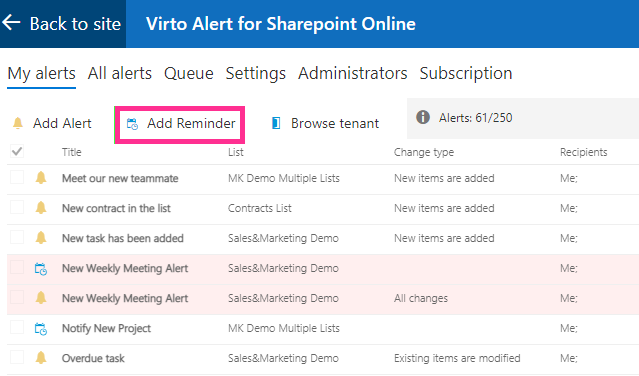
Go to the “My alerts” page and click “Add reminder.”
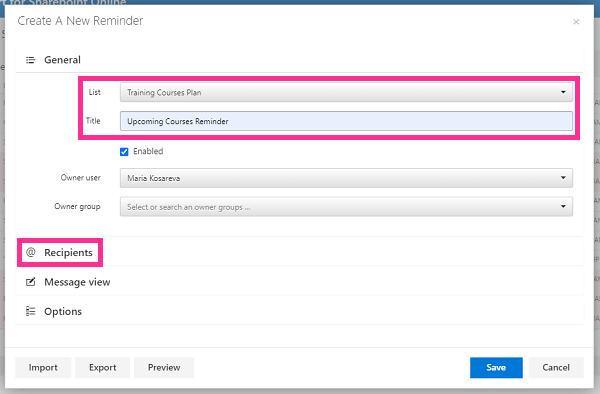
Choose the SharePoint list containing the planned courses and enter a title for the new reminder. Then, click “Recipients.”
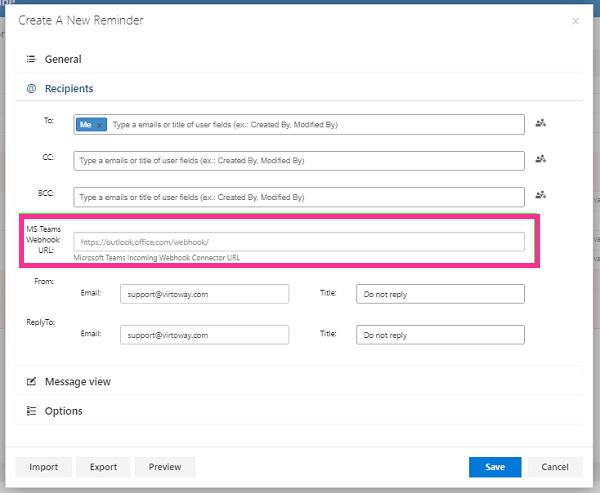
In the “Recipients” section, we add a Microsoft Teams webhook URL to send the reminder directly to a Microsoft Teams channel. In Teams, this URL is created with the Workflows app. The full walkthrough is in How to send alerts from SharePoint to Microsoft Teams.
Note: Microsoft retired Office 365 Connectors in Teams in 2026, including the Incoming Webhook connector. Create the URL with the Workflows app as described below.
In Microsoft Teams, find the channel that will receive the reminders. Hover over the channel name, click “More options (…),” and select “Workflows.”

Find the “Send webhook alerts to a channel” template and select it. If you don’t see it right away, type “webhook” in the “Find templates” search box.

Check that the right team and channel are selected in the “Team the channel is in” and “Channel” fields, then click “Save.”

Once you see the “Workflow created” message, click “Copy webhook link.”

Finally, paste this link into the “MS Teams Webhook URL” field in the “Recipients” block.

Next, define the appearance of your reminder in the “Message view” block. We will mark it as important using the “Is important” checkbox.
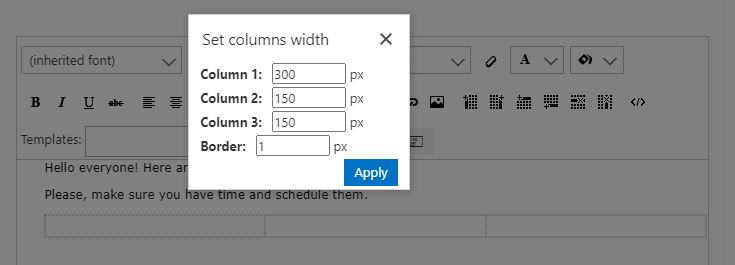
We will also add a table containing the upcoming courses, their start date and time, and their duration. Click the add table icon and select the number of rows and columns. We need three columns.
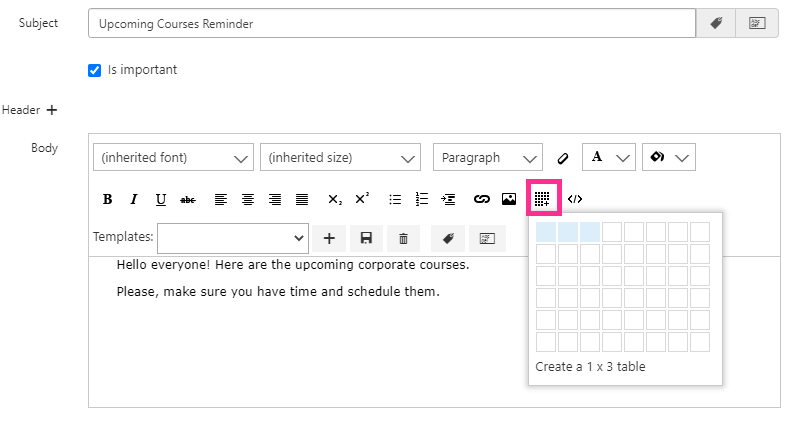
Define the columns’ width and the border thickness in pixels.
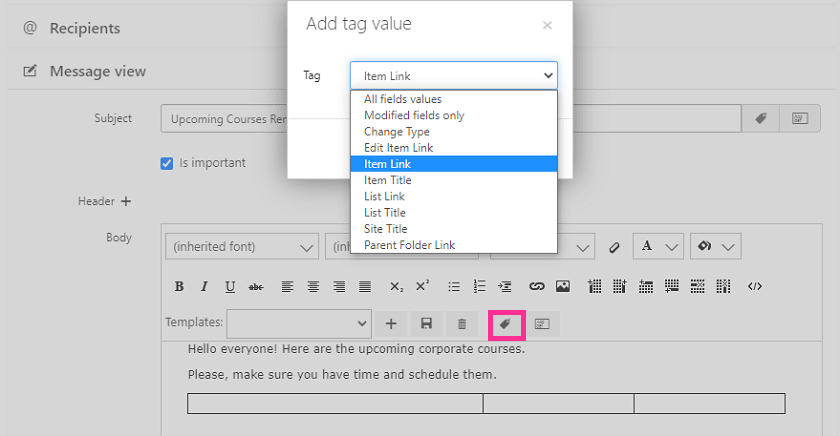
Add the “Item link” tag to the first column (using the add tag icon). The reminder will automatically add the value from the chosen list so that the recipients can see the title of the upcoming course and a link to it. The added tag will appear in blue.
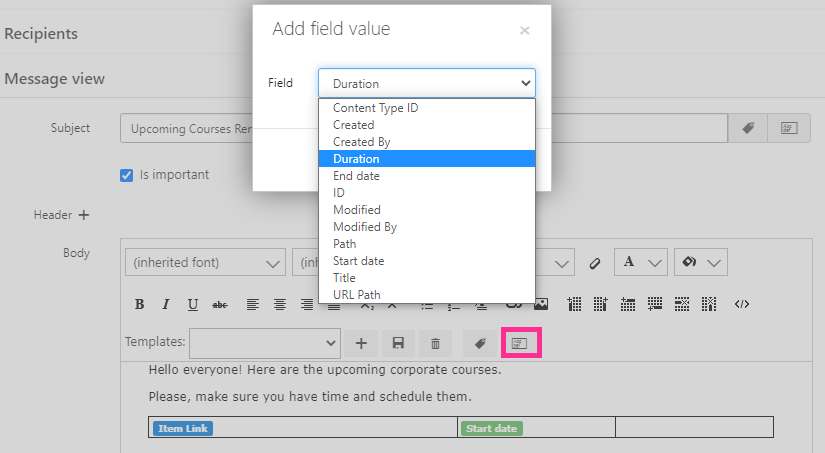
Click the add field value icon and add the start date and duration to the next two columns. Added field values appear in green.
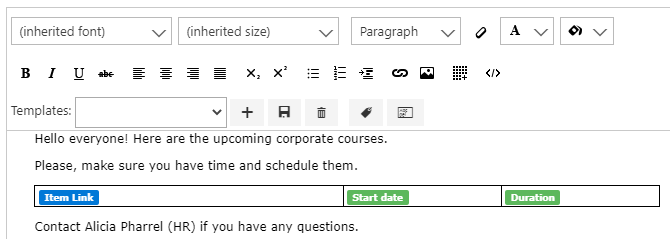
This is the resulting message.
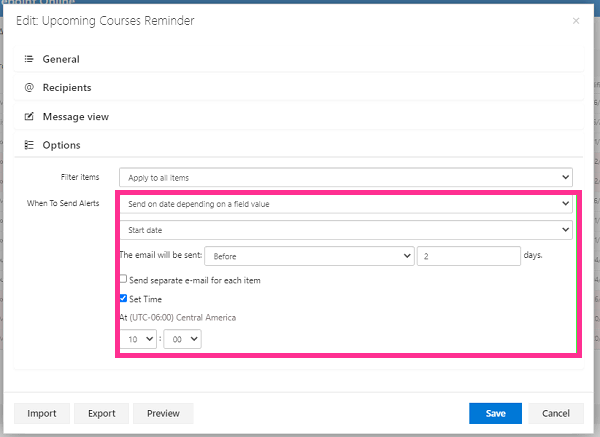
To finish creating a reminder, go to the “Options” block and specify when recipients will receive the reminder. We need to send reminders two days before a course starts, so let’s choose “Send on date depending on a field value.” Choose “Start date” as the field value and specify “before” and “2 days.” Then click “Save.”
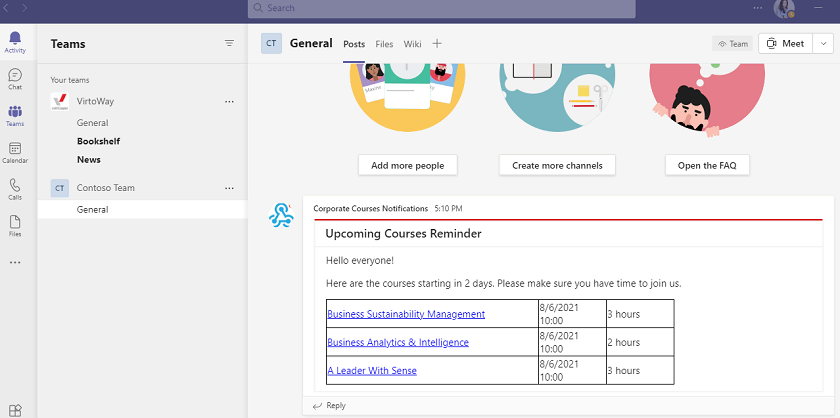
Now, two days before a course starts, a reminder will appear in the chosen Microsoft Teams channel.
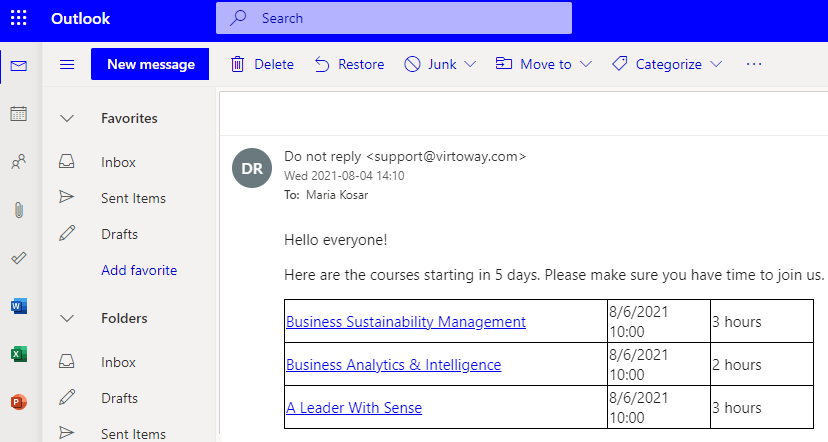
The same message will appear as an email alert.
This is how you can organize automatic notifications for your team. Almost any level of flexibility is available. Just decide what you need to see and use the wide range of features the Virto Alerts & Reminder App offers to make it happen.