
How to send alerts from SharePoint to Microsoft Teams
The Virto Alerts & Reminder App can post alerts directly to a Microsoft Teams channel. To do this, you create a workflow in Teams that generates a unique webhook URL, and then add that URL to your alert. Every time the alert fires, the app sends it to the URL, and the workflow posts it to the channel.
Note: Microsoft retired Office 365 Connectors in Teams in 2026, including the Incoming Webhook connector. Use the Workflows app instead, as described below. If an existing alert still uses an Incoming Webhook URL, create a workflow for the same channel and replace the old URL in the alert with the new one.
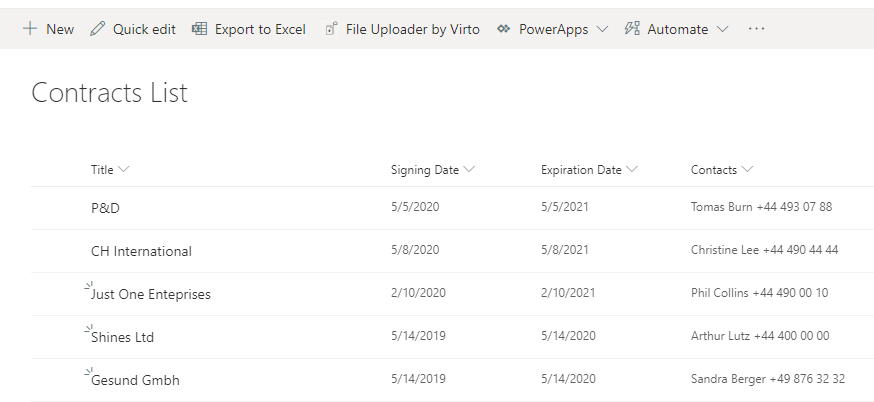
In the example below, we are working on a SharePoint list containing contracts to be signed and attached. We want to receive an alert whenever a team member creates a new entry.
Step 1: Create a workflow in Microsoft Teams
In Microsoft Teams, find the channel that will receive the alerts. Hover over the channel name, click “More options (…),” and select “Workflows.”

Find the “Send webhook alerts to a channel” template and select it. If you don’t see it right away, type “webhook” in the “Find templates” search box.

Check that the right team and channel are selected in the “Team the channel is in” and “Channel” fields, then click “Save.”

Once you see the “Workflow created” message, click “Copy webhook link.” You will paste this URL into the Virto Alerts & Reminder App in the next step.

Tip: Treat the webhook link like a password. Anyone who has it can post messages to your channel.
Step 2: Create an alert
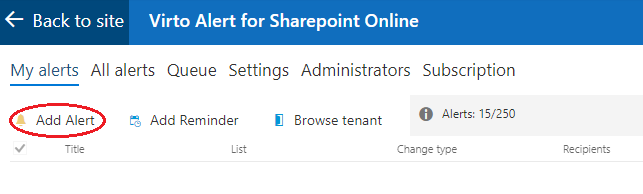
Open your SharePoint site, navigate to the “My alerts” page, and click “Add Alert.”
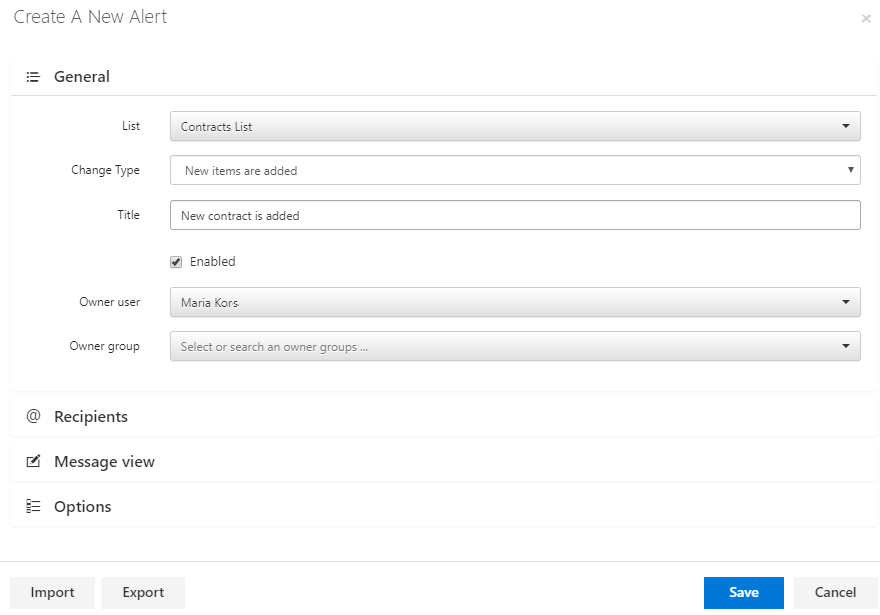
Select the SharePoint contracts list and adjust the alert as needed.
Open the “Recipients” block and paste the copied workflow webhook link into the “MS Teams Webhook URL” field.

You can make any other adjustments to the alert (e.g., adding a title, defining when to send it, etc.) and save it.
Step 3: Receive alerts from SharePoint in Microsoft Teams
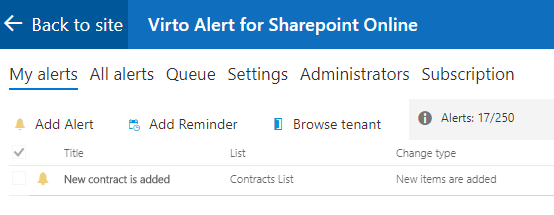
When your colleagues add a new contract (e.g., a list item), the alert is posted to the selected Microsoft Teams channel. The message appears on behalf of Workflows and keeps the formatting of your alert template.

This simple option makes it easy to adjust any business process. You can apply this feature to multiple teams and channels by creating a separate workflow for each. You can track changes, notify people about events, remind them about deadlines, etc. If you use the Virto Alerts & Reminder App to send SharePoint alerts to Teams, your team will enjoy receiving all their essential notifications in a single, convenient place.